
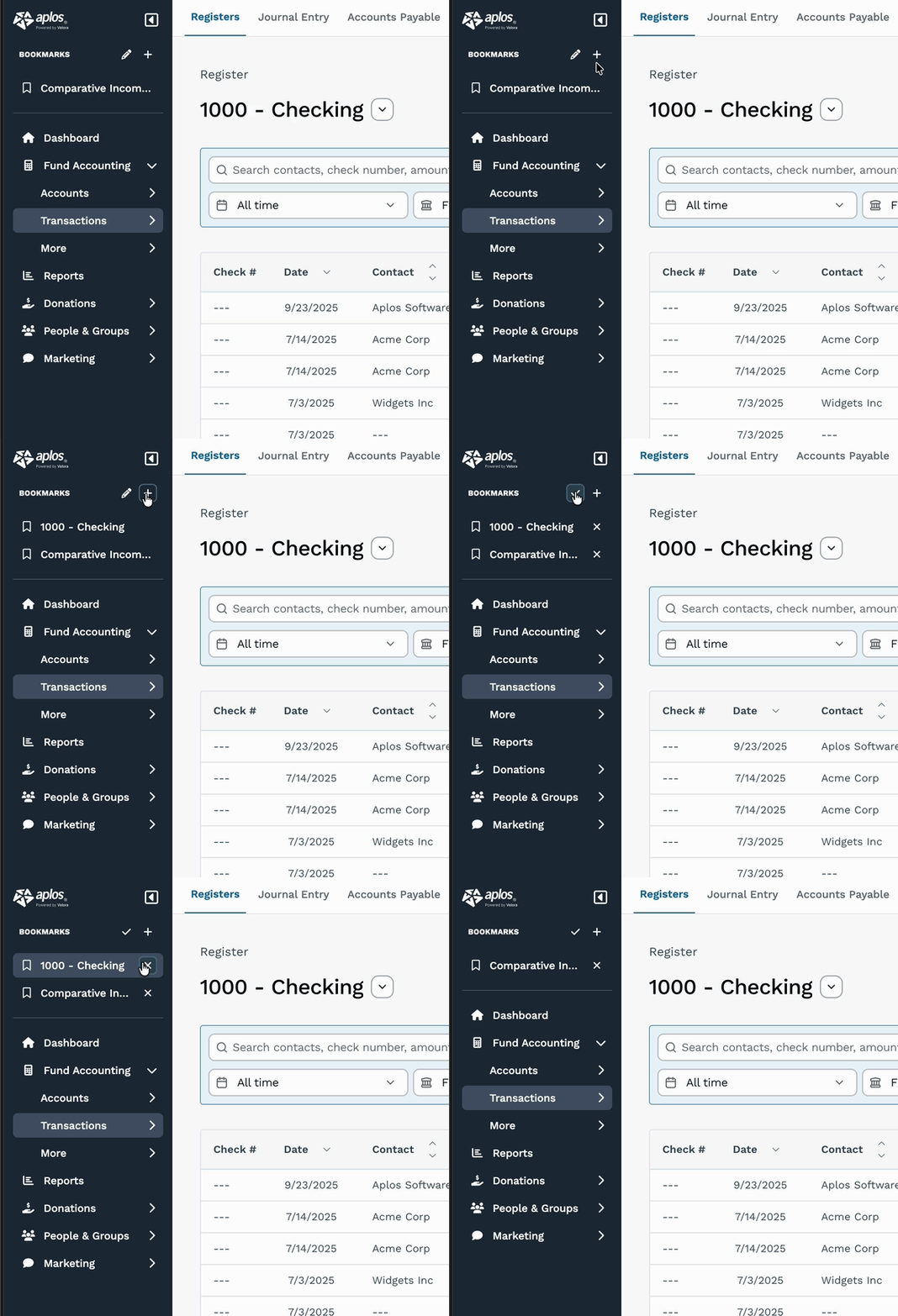
We recently added the ability for you to add ‘Bookmarks’ to your navigation menu and reorder their appearance. This means you can create your own quick links to the pages you use most often. Whether it’s a specific bank register or a monthly budget-to-actual report, you’ll be able to access it with a single click from the top of your menu.
To add pages to the Bookmarks section of your menu, click the "plus sign" that appears in the menu header. The page you currently have open will automatically be added to the Bookmarks menu. At this time, you cannot edit bookmark names. However, you can delete bookmarks from your menu by clicking the "pencil" icon and then the "X" next to any bookmark you'd like to remove.
Learn more about this new feature on our resource article.